
Download GIGI Squad
The desktop app for caregivers and the elders they support — video calls, presence and consent-based remote help. Pick the build that matches your computer; installs keep themselves up to date automatically after that.
- Free to pair — no subscription to install
- macOS builds are signed and notarized by One Threshold, LLC
- Updates install themselves, so both sides stay on the same version
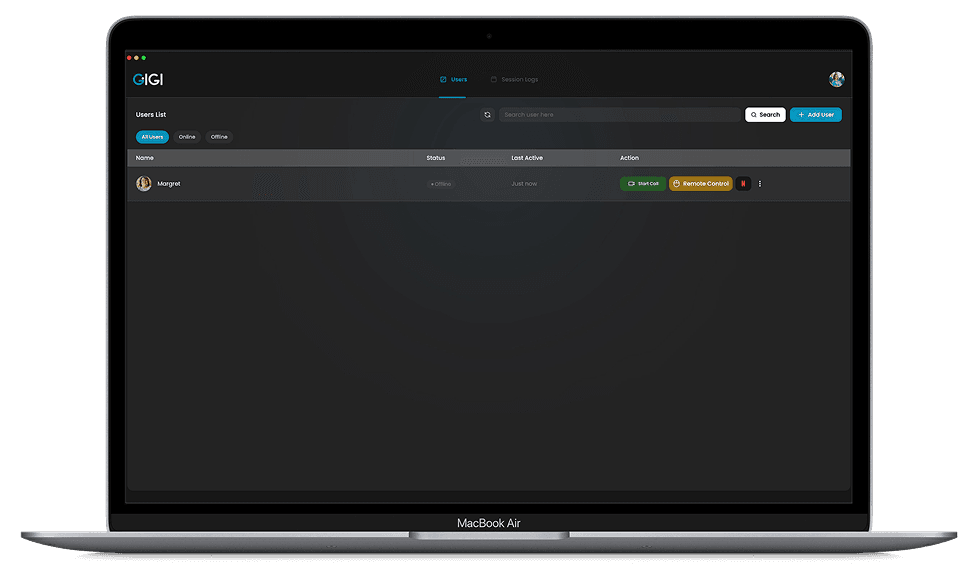
All desktop builds
macOS ships as two separate builds — one for Apple Silicon, one for Intel. Downloading the wrong one means the app will not open, so check the chip if you are unsure.
macOS — Apple Silicon
M1, M2, M3, M4 and newer
For every Mac sold since late 2020. This is the right choice for most Macs today.
- macOS 11 Big Sur or later
- Apple Silicon processor
- ~250 MB download
macOS — Intel
Intel Core i3 / i5 / i7 / i9
For Macs built before the Apple Silicon transition. Will not run on an Apple Silicon Mac.
- macOS 11 Big Sur or later
- Intel processor
- ~260 MB download
Windows
Windows 10 and 11, 64-bit
One installer for all supported 64-bit Windows PCs. Installs for everyone on the computer.
- Windows 10 or later (64-bit)
- Administrator rights to install
- ~220 MB download
Not sure which Mac you have?
- 1Click the Apple menu in the top-left corner, then About This Mac.
- 2A line reading Chip: Apple M1 (or M2, M3, M4) means Apple Silicon.
- 3A line reading Processor: Intel means you need the Intel build.
After the download
Installing on a Mac
- 1Open the downloaded .dmg and drag GIGI Squad into your Applications folder.
- 2Launch GIGI Squad from Applications and sign in or pair with your family member.
- 3When asked, allow Screen Recording, Accessibility, camera and microphone — the app walks you to each setting and remote help will not work without the first two.
Mac builds are notarized by Apple, so macOS opens them without a Gatekeeper warning.
Installing on Windows
- 1Run the downloaded installer and approve the Windows admin prompt.
- 2Choose an install location, or accept the default, and finish the setup.
- 3Launch GIGI Squad from the desktop or Start menu shortcut and sign in.
The Windows installer is not code-signed yet, so Windows may show a "Windows protected your PC" notice — choose More info, then Run anyway.
GIGI Squad on phones and tablets
The mobile companion apps are live on the App Store and Google Play.