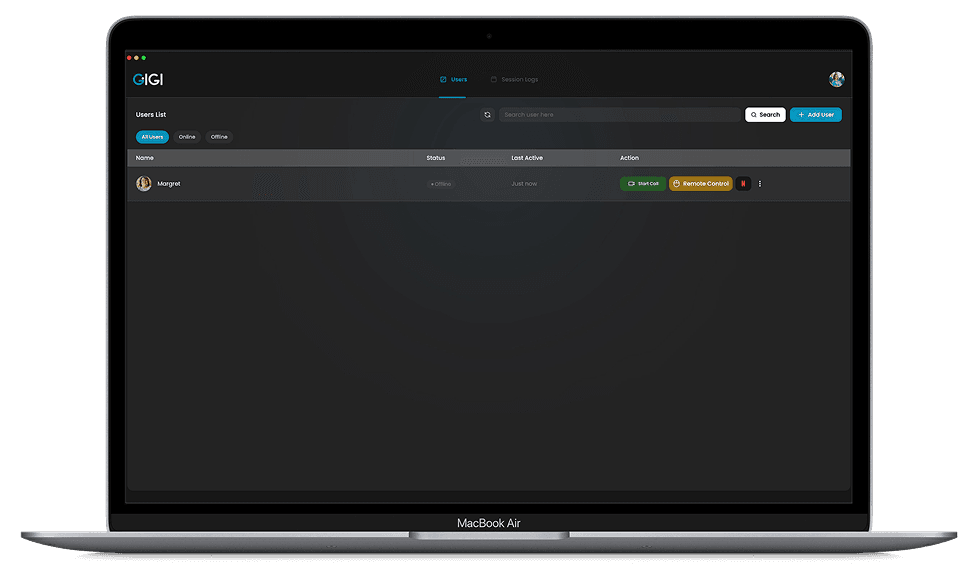
Call them — GIGI Squad connects it for them

GIGI Squad pairs a caregiver with the elder they support. Calls auto-connect on the elder's screen — no button to find, nothing to answer — and remote help works the same way, so you can fix the problem instead of talking them through it. The elder stays in control and can switch either off at any time.

Free to pair. Calls auto-connect. No call recording, ever.

A hand holding a phone showing the GIGI Squad splash screen
App Features

Everything a caregiver needs. Nothing an elder has to press.

Auto-connecting calls, one-PIN pairing, remote help, and Watch Together — each one built so the elder never has to find a button, and can switch any of it off at any time.

Pair once, then never set up again

Pair once, then never set up again

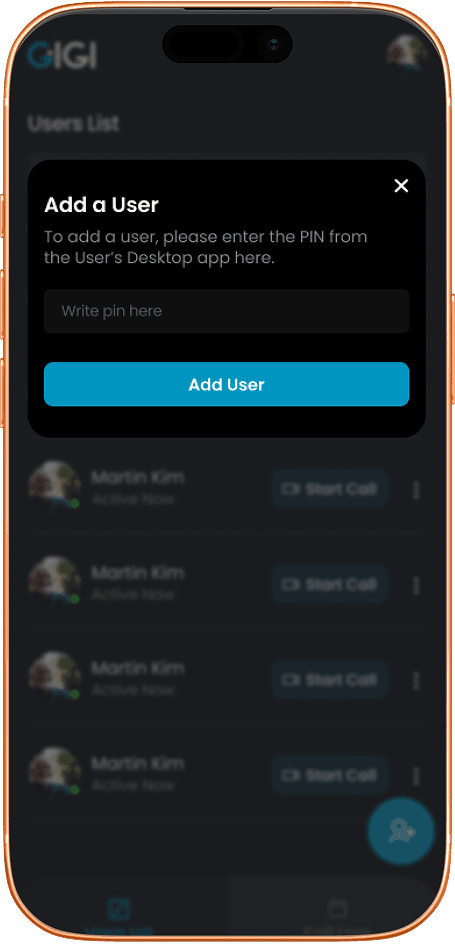
One 6-digit PIN links the two of you for good. After that, calls and help connect on their own — there is nothing to configure again on the elder’s side.

  • Generate a one-time PIN on the elder’s desktop
  • Enter the PIN in your caregiver mobile app
  • Confirm once — from then on, everything auto-connects
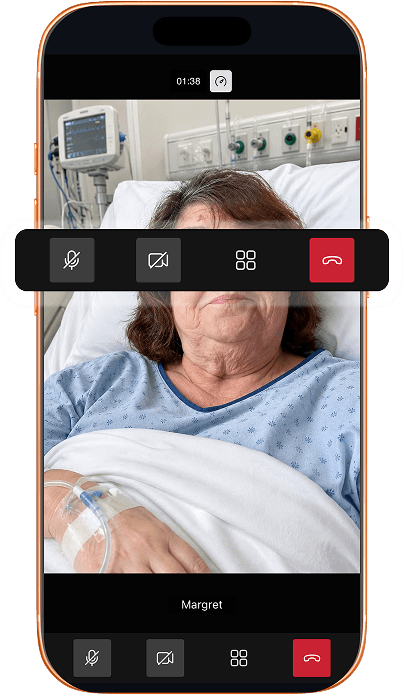
Auto-connecting calls that are never recorded

Auto-connecting calls that are never recorded

Ring the elder and the call connects itself — their screen shows your name and a short moment to decline, then you are simply together. No hunting for an Answer button, no missed calls. Calls run on GIGI Squad's own self-hosted video infrastructure and are never recorded or stored.

  • Tap Start Call from your paired contact
  • Their screen shows your name and connects on its own
  • Hang up — nothing is recorded or stored

Remote help that connects on its own

Once the elder allows remote access at pairing, GIGIdesk connects straight to their screen — no prompt for them to read, no instructions to follow over the phone. They watch you work, end the session whenever they like, and can switch remote access off entirely in Settings.

  • The elder allows remote access once, at pairing
  • Start a session — it connects without them doing anything
  • Either side can end it, and the elder can revoke access anytime
Remote help that connects on its own
Watch Together

Watch Together

Start a synced viewing session and it opens on both screens on its own — pick a show, press play, and watch side by side without being in the same room.

  • Start a synced session from your side
  • It opens on the elder’s screen automatically
  • Watch in real time, perfectly in sync
Loved by community

Why people stick with GIGI Squad

Real stories from caregivers and elders who have stayed closer, worried less, and cared for each other with confidence.

Pairing took a minute, and now I just call — it connects on Mum’s screen without her touching anything. Knowing calls are never recorded put her completely at ease.
SLSarah L.Caregiver, daughter
The remote help is the part I rely on most. I connect straight to Dad’s laptop instead of talking him through clicking Accept, and he ends the session the moment we’re done.
JPJames P.Caregiver, son
I like that I stay in control. Nothing happens on my computer unless I say yes, and I can hang up or disconnect any time.
MKMargret K.Using GIGI Squad with family
Watch Together means we still have our Sunday movie even though we live three hours apart. It genuinely feels like being in the same room.
ERElena R.Caregiver
Presence is small but it matters — a glance tells me she’s up and about. Fewer worried phone calls, more real conversations.
DMDavid M.Caregiver, grandson
No ads, no data selling, no subscription. It does exactly what it promises and nothing it shouldn’t. That’s rare.
PSPriya S.Caregiver
FAQ's

Got Questions? We've Got Answers

Quick answers about pairing, auto-connecting calls, remote help, and Watch Together. For setup help, see our full Support Center.

Yes. Pairing, video calling, presence, remote desktop assistance, and Watch Together are all included at no cost — there is no subscription.

A mobile app for iOS and Android, plus a GIGI Squad desktop app for macOS and Windows.

Yes. Caregivers can pair and call from mobile, then sign in to GIGI Squad on desktop with the same caregiver account to use the full feature set, including presence, remote help, and Watch Together.

The elder generates a one-time 6-digit PIN, the caregiver enters it, and the elder confirms the request. That creates the pairing, and one caregiver pairs with one elder at a time.

No. By default the call auto-connects: the elder's screen shows the caregiver's name and a few seconds to decline, and if they do nothing, the call simply starts. There is no Answer button to find and no call to miss. An elder who would rather answer manually can turn auto-accept off in Settings.

No. Calls run on GIGI Squad's own self-hosted video infrastructure and are never recorded or stored, by us or anyone else.

Only while the elder allows it. Remote access is granted once, by the elder, during pairing — after that a help session connects on its own, so they never have to work out which prompt to accept. The elder sees the session the whole time, can end it at any moment, and can switch remote access off completely in Settings, which blocks any further connection.

Watch Together lets you start a synced viewing session that opens on the elder’s screen automatically, so you can watch the same show or movie together even when you are not in the same room.

GIGI Squad keeps the account and session data needed to run the service, such as pairing state, presence, and call history metadata. It does not record or store call content.

Yes, at any time. Either the caregiver or the elder can unpair from Settings, and both accounts are unlinked immediately.

Check that both devices have a stable internet connection, then confirm camera and microphone permissions are enabled. If you are on a restrictive Wi-Fi network, try mobile data or another network.

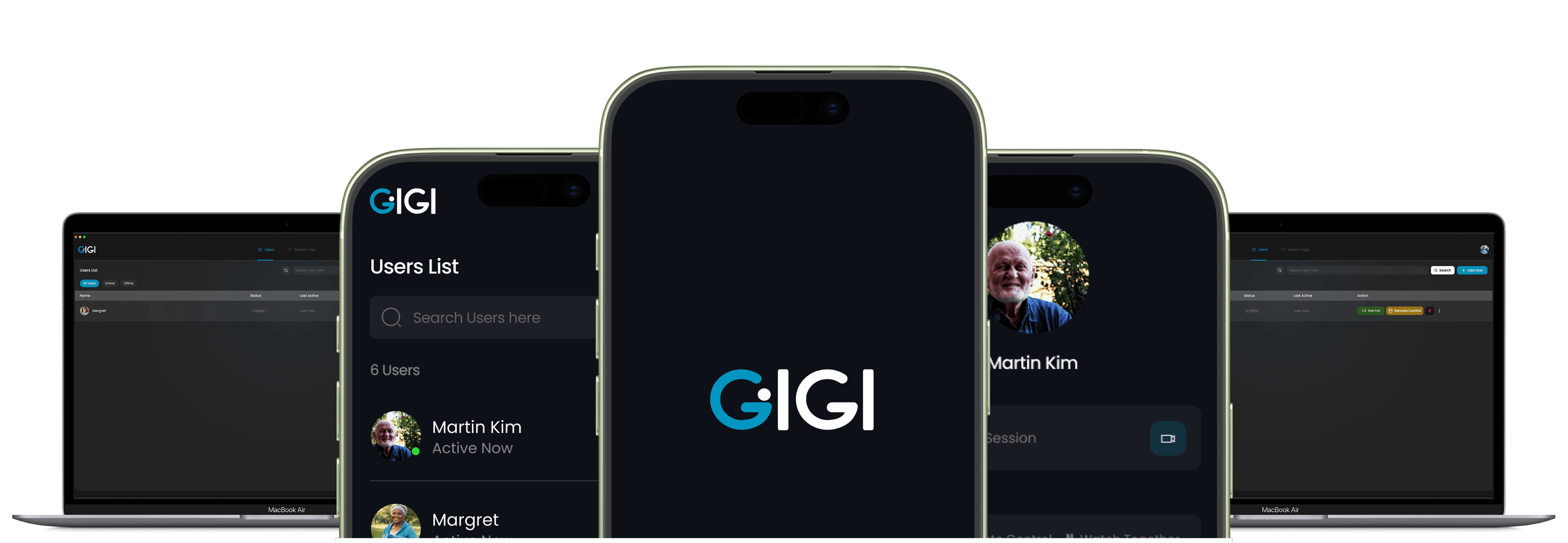
GIGI Squad running across phone and desktop

Download GIGI Squad & Stay Close

Your family's care circle — auto-connecting video calls, remote help, presence and Watch Together — all in one app. Nothing for the elder to answer. Free to pair.

Get GIGI Squad on Google PlayGet GIGI Squad on the App StoreDownload GIGI Squad for WindowsDownload GIGI Squad for macOS (Apple Silicon)
Intel Mac, system requirements and install steps
Contact Us

Have a question or some feedback?

Drop us a note and we'll get back to you as quickly as possible. We read everything.